> For the complete documentation index, see [llms.txt](https://support.doowii.io/llms.txt). Markdown versions of documentation pages are available by appending `.md` to page URLs; this page is available as [Markdown](https://support.doowii.io/top-resources/preferences.md).
# Preferences
Help Doowii understand your organization better by adding key instructions, definitions, and documents to improve response accuracy.
Doowii’s ***Preferences*** feature enables **account admins** to provide tailored context that improves how Doowii understands and responds to user questions, and **individual users** to provide personalized context to customize how Doowii responses to their questions. This includes setting broad instructions, defining organization-specific terms, and uploading relevant documents.
Knowledge and context added through this feature influences responses across your organization, helping align Doowii’s AI with your data, language, policies, and reporting needs.
{% hint style="success" %}
All users can edit and update their personal instructions, knowledge, and documents.
{% endhint %}
{% hint style="warning" %}
Only the account's system admins can access and edit the organization's instructions, knowledge, and document management details.
{% endhint %}
***
#### Preferences Page Overview
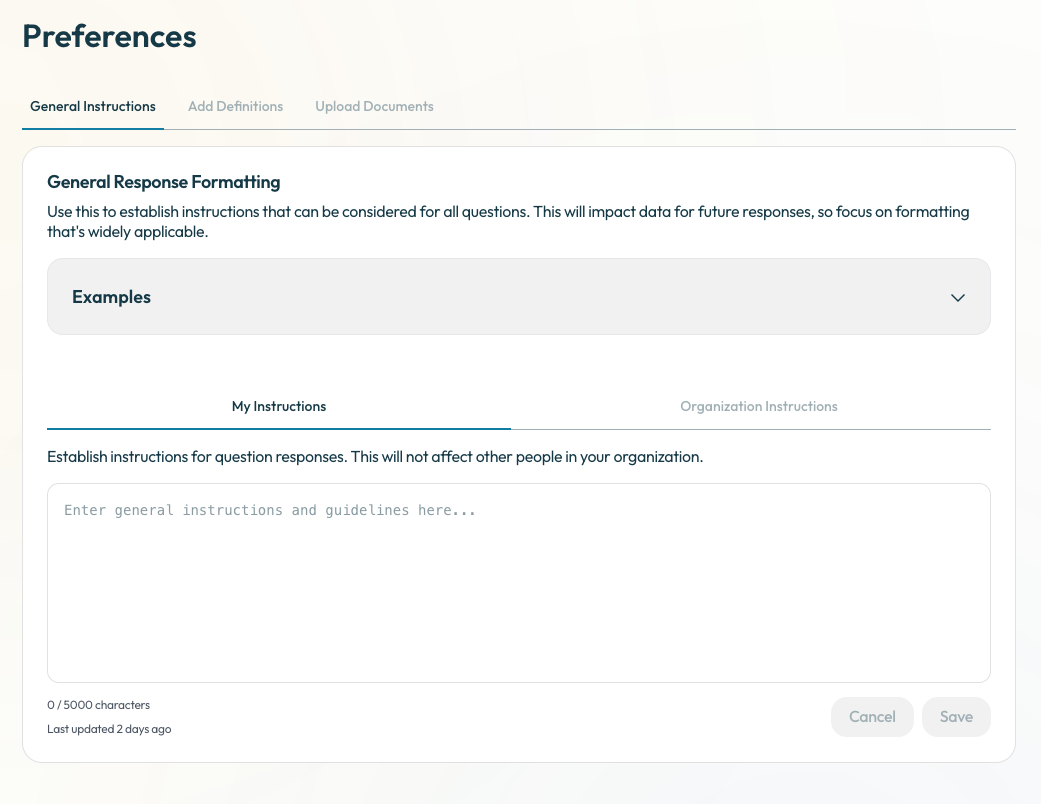
The Preferences tab includes three main tabs, each with “Personal” and “Organization” sections.
**1. General Instructions**
Use this tab to define broad instructions that shape every response Doowii gives. These are especially useful for setting consistent expectations across your institution or for a specific user.
These instructions support plain text only.
Recommended Uses:
* Response formatting: (e.g., date format: MM/DD/YYYY)
* Organizational terminology: (e.g., refer to “First-Year Students” as “Freshmen”)
* Basic filters: (e.g., always exclude withdrawn students unless otherwise noted)
* Labeling clarity: (e.g., use full course names instead of course codes)
Not Supported:
* Chart formatting (use the chart builder for visualization changes)
* Suppressing parts of the response (e.g., “remove summary”)
***
**2. Add Definitions**
Add searchable, context-specific definitions and logic that apply only when relevant to a user’s question. This section helps Doowii deliver more accurate, tailored answers.
Entries should be written in plain text and should include the exact terminology your users are likely to use.
Recommended Uses:
* Group definitions: (“At-Risk Students” = GPA < 2.0 or >3 missed advising sessions)
* Filter logic: (“STEM Majors” = Biology, Chemistry, Engineering, and Physics)
* Metric explanations: (“Completion Score” = completed / attempted courses)
* Policy definitions: (“Full-Time Student” = enrolled in 12+ credits per term)
Not Supported:
* Chart formatting or theming
* Response layout changes
***
**3. Upload Documents**
Upload policy documents, handbooks, rubrics, and other materials that add searchable context to your knowledge base. Doowii will use these documents to improve how it interprets and responds to user questions.
Recommended Uploads:
* Academic or advising policies
* Program descriptions
* Eligibility criteria for services or aid
* Process documentation or internal rubrics
Documents can be added to either the “Personal Documents” or “Organization Documents” section, depending on scope.
***
#### How to Add Knowledge
To Add or Edit General Instructions:
1. Navigate to the *General Instructions* tab.
2. Choose *Personal* or *Organization* section.
3. Add or update instructions (note, there is a 5000 character limit for general instructions).
4. Click *Save* to confirm your changes, or *Cancel* to discard the changes.
#### To Add Definitions:
1. Navigate to the *Add Definitions* tab.
2. Choose *Personal* or *Organization* section.
3. Click *Add Knowledge*.
4. Add a title and enter the relevant definitions, logic, or explanations.
5. Click *Save* to confirm your changes, or *Cancel* to discard the changes.
**To Upload Documents:**
1. Go to the *Upload Documents* tab.
2. Click ***Upload Document***.
3. Select your file.
* Supported file types: .pdf, .doc, .docx, .txt, .md, .yaml, .rtf (max 50MB).
4. Add a Title and short description explaining what the document contains.
5. Click Upload.
{% hint style="info" %}
PDF parsing may vary depending on formatting. Use Word or text files when possible for more reliable extraction.
{% endhint %}
Uploaded or edited instructions, context, definitions, and documents are typically available to users within 5 minutes.
***
#### Managing Context Items
For each preference (term or document):
* **Status**: Shows whether the item is processing, failed, or completed.
* **Edit**: Make changes to the term, definition, or document metadata.
* **Enable**: Toggle the “Enable” switch to turn off an item without deleting it.
* **Delete**: Remove the item completely.
***
#### Preferences Best Practices
* Use clear, plain language and include the terms users are likely to recognize .
* Test changes after adding or editing context by running sample questions.
* Notify internal users if a context update changes how data is filtered or interpreted.
* Avoid adding contradictory instructions or definitions unless contextually justified.
{% hint style="danger" %}
Changes to preferences may significantly affect how Doowii queries data and interprets results. Review carefully before publishing.
{% endhint %}
***
#### Common Use Cases & Examples
Preferences may be used to:
* Define how student groups are categorized
* Clarify metric calculations for consistency
* Upload internal policy documents to guide responses
* Set default filters to reduce unnecessary noise
* Ensure Doowii reflects your institution’s language and expectations
{% hint style="info" %}
Need help writing strong entries? Contact your Doowii Support team for support, templates, and examples.
{% endhint %}
***
#### Troubleshooting & FAQs
How is context used by Doowii?
Context entries and documents are searched when a user submits a question. If relevant, the content is used to refine and personalize the response.
What happens if I upload conflicting definitions?
Clarity may suffer. Aim for consistent and precise entries across tabs. Review periodically to avoid duplication or contradiction.
What should I do if context isn’t being applied as expected?
If Doowii doesn’t seem to be using your uploaded context accurately, there are a few things you can try:
* Rephrase your entries to include the terms, phrases, or example questions your users are likely to type.
* Clarify your definitions and descriptions so they reflect and align with your organization’s data schema and data sources
* Use plain language, which should help reduce ambiguity when encountering organization-specific terms (for instance, terms or metrics that aren’t widely used or clearly defined).
We’re continuously improving how preferences are applied. If you’re still not getting the results you expect, please submit feedback through the app or reach out to our support team. Your input helps us refine and enhance the feature for everyone.
---
# Agent Instructions
This documentation is published with GitBook. GitBook is the documentation platform designed so that both humans and AI agents can read, navigate, and reason over technical content effectively. Learn more at gitbook.com.
## Querying This Documentation
If you need additional information that is not directly available in this page, you can query the documentation by asking a question.
Perform an HTTP GET request on the following URL with the `ask` and `goal` query parameters:
```
GET https://support.doowii.io/top-resources/preferences.md?ask=&goal=
```
`ask` is the immediate question: it should be specific, self-contained, and written in natural language.
`goal` is what the user is ultimately trying to achieve, the reason they need the answer. Sharing it helps GitBook give you a better, more relevant answer. A goal is most helpful when it describes the outcome the user wants rather than restating the question. For example, with `ask=how do I create an API token`, a goal like `automate deployments from our CI pipeline` lets GitBook tailor the answer to that use case.
The response will contain a direct answer to the question and relevant excerpts and sources from the documentation.
Use this mechanism when the answer is not explicitly present in the current page, you need clarification or additional context, or you want to retrieve related documentation sections.